

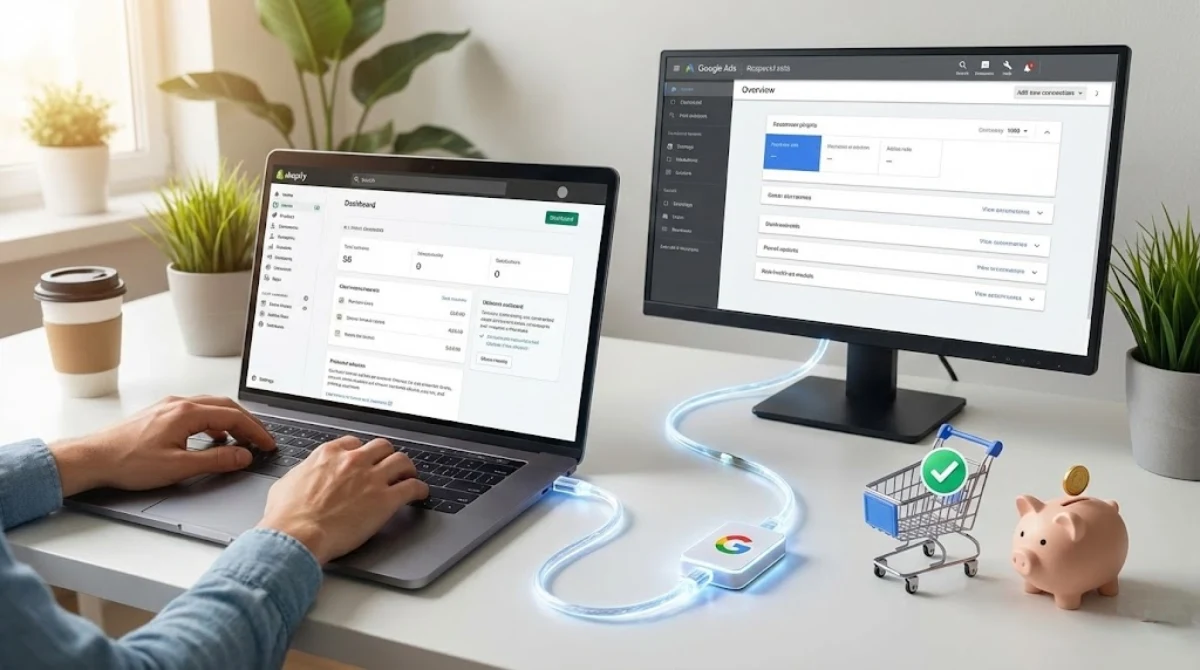
Accurate conversion tracking transforms your Shopify advertising from guesswork into data-driven decisions. Without proper tracking, you’re essentially running campaigns blindfolded, unable to measure ROI or optimize spending effectively.
Setting up Google Ads conversion tracking on Shopify requires understanding both automated and manual methods, including monitoring conversions through the Google and YouTube apps, configuring customer events, and verifying data in Google Analytics.
Motiur Insights, a certified Google Tag Manager and GA4 expert, helps Shopify merchants implement precise, multi-platform conversion tracking to maximize advertising performance and ROI.
This guide walks you through proven setup techniques, integration with multiple advertising platforms, and troubleshooting common issues to ensure every conversion is captured accurately.
Why Proper Conversion Tracking Matters for Shopify Stores?

Conversion tracking serves as the foundation for campaign optimization and budget allocation. Without accurate data, Google’s machine learning algorithms cannot identify which keywords, ads, and audiences drive actual sales. This leads to wasted ad spend on underperforming campaigns while potentially profitable opportunities remain underfunded.
Real conversion data enables smart bidding strategies like Target ROAS and Maximize Conversions to function effectively. These automated bidding systems rely entirely on historical conversion information to make intelligent decisions about when and where to show your ads. Working with a Google Tag Manager expert ensures your tracking infrastructure captures every critical data point across all customer touchpoints.
Accurate tracking also reveals the true customer journey across devices and sessions. When implemented correctly through advanced conversion tracking methods, you can attribute revenue to specific campaigns even when customers research on mobile but purchase on desktop days later.
Automated Setup Using the Google and YouTube App
The Google and YouTube app represents the fastest path to conversion tracking for most Shopify merchants. This official Shopify integration eliminates manual coding while providing robust tracking capabilities that sync automatically with your store’s checkout process.
Installing and Connecting Your Accounts
Navigate to your Shopify App Store and search for the “Google and YouTube” application. After clicking install, you’ll grant the necessary permissions that allow the app to access order data and customer information.
Connect the Google account that manages your advertising campaigns to ensure proper data flow between platforms. The installation process automatically creates connections between your Shopify store and Google’s advertising ecosystem.
This includes Google Ads, Google Analytics, and Merchant Center if applicable. For comprehensive tracking across multiple channels, consider implementing Facebook CAPI integration and TikTok conversion pixel installation simultaneously.
Configuring Automatic Event Mapping
The app automatically maps standard Shopify events to Google Ads conversion actions. These include purchase, add_to_cart, begin_checkout, and page_view events that trigger without additional configuration.
Each event sends structured data, including transaction value, currency, and product IDs to your Google Ads account. Review the event configuration page within the app settings to verify which actions are being tracked.
You can enable or disable specific events based on your campaign goals. Businesses focused on comprehensive analytics often pair this with GA4 setup and optimization to create unified reporting across all marketing channels.
Enabling Enhanced Conversions
Enhanced conversions improve tracking accuracy by sending hashed first-party customer data like email addresses and phone numbers to Google. Toggle this feature within the app settings to activate automatic data collection.
The app securely hashes all personal information before transmission, maintaining customer privacy while improving attribution. This feature becomes particularly valuable when combined with Google Ads conversion setup for remarketing campaigns.
Enhanced data allows Google to match conversions even when cookies are blocked or users switch devices mid-journey.
Manual Setup Through Shopify Customer Events
Advanced users requiring granular control should implement manual tracking via Shopify’s Customer Events framework. This method enables custom event configuration, specific data layer variables, and integration with platforms beyond Google’s ecosystem.
Creating Your Conversion Action in Google Ads
Open your Google Ads account and navigate to Goals > Conversions > New Conversion Action. Select “Website” as your conversion source and choose “Add a conversion action manually” from the options.
Configure the category as “Purchase” and enable “Use different values for each conversion” to track actual transaction amounts. Under tag setup, select “Use Google Tag Manager” even if you’re not using GTM initially.
This generates your Conversion ID and Conversion Label, which you’ll need for the custom pixel. Merchants handling lead generation alongside sales should also configure Google Ads phone conversion tracking to capture calls driven by advertising.
Implementing Custom Pixel Code
Navigate to Settings > Customer Events within your Shopify admin panel. Click “Add Custom Pixel” and name it descriptively like “Google Ads Purchase Tracking.”
Paste your custom JavaScript code that subscribes to the checkout_completed event and fires your conversion tag with dynamic order values. Your code should include the Conversion ID and Conversion Label from Google Ads, along with variables for transaction_id, value, and currency.
This approach works seamlessly with Shopify Ads performance tracking implementations and can be extended to support Snapchat ads tracking setup and Pinterest campaign tracking services.
Testing Your Custom Implementation
Use the Google Tag Assistant Chrome extension to verify your tags fire correctly on test purchases. Complete a real transaction in your store and check that the conversion appears in your Google Ads account within 24-48 hours.
The test should confirm that transaction values, order IDs, and customer data are transmitted accurately. Any GA4 analytics specialist will emphasize the importance of parallel testing across multiple browsers and devices.
Mobile tracking often encounters different issues than desktop implementations, particularly regarding cookie consent and session persistence.
Multi-Platform Conversion Integration
Modern ecommerce success requires tracking beyond Google Ads alone. Shopify merchants typically advertise across Facebook, Instagram, TikTok, Snapchat, Pinterest, LinkedIn, and Microsoft platforms simultaneously.
Each requires specific pixel implementations that share similar underlying principles.
Cross-Platform Tracking Architecture
Implement Meta pixel setup alongside your Google tracking to maintain unified attribution. The same Customer Events framework supports multiple pixels simultaneously without code conflicts.
This enables consistent conversion data across all advertising platforms while maintaining a single source of truth in your Shopify admin. Consider LinkedIn Insight tracking setup for B2B merchants and Microsoft Ads conversion tracking for businesses targeting Bing users.
Professional implementation often incorporates GA4 server-side analytics expert techniques for maximum data accuracy and privacy compliance.
CRM and Marketing Automation Integration
Connect your conversion data with HubSpot CRM performance tracking to close the loop between advertising spend and customer lifetime value. This integration reveals which campaigns attract high-value customers rather than just high volume.
Implement UTM parameter setup consistently across all campaigns to maintain clean attribution in your CRM reports. The combination of advertising platforms, analytics tools, and CRM systems creates comprehensive visibility into marketing ROI.
Work with an ecommerce tracking specialist to design attribution models that accurately credit conversions across the complex customer journey.
Troubleshooting Common Tracking Issues

Conversion discrepancies between Google Ads and Shopify order reports are the most frequent complaint from merchants. Understanding why these differences occur and how to minimize them ensures data reliability for campaign optimization decisions.
Resolving Data Discrepancy Problems
Google Ads typically shows higher conversion counts than actual orders due to attribution window settings, duplicate tags, or testing transactions. Review your conversion action settings to verify you’re not counting the same purchase twice through both app-based and manual tracking methods.
Ensure test orders are filtered from your conversion data. Lower conversion counts often indicate tracking failures on the order confirmation page.
Check that your pixel fires after successful payment processing, not just when customers reach checkout. Browser privacy features, ad blockers, and consent management platforms can all block conversion tags from loading.
Conversion Value Accuracy
Incorrect transaction values usually stem from currency mismatches or tax/shipping inclusion settings. Verify your conversion action is configured to use the same currency as your store.
Decide whether conversion values should include or exclude shipping and taxes, then configure consistently across all platforms. For businesses implementing AD conversion tracking across multiple currencies, dynamic currency conversion requires special handling.
Your tracking code must pass the actual transaction currency along with the conversion value to prevent reporting errors.
Cookie Consent and Privacy Compliance
GDPR and privacy regulations significantly impact tracking accuracy. Implement a compliant consent management platform that integrates with your conversion tracking setup.
When users decline tracking cookies, your conversion data will naturally decrease, but this represents real limitations rather than technical failures. Consider Facebook Pixel conversion tracking through server-side methods when cookie-based tracking proves unreliable.
Server-side tracking bypasses browser-level blocking while maintaining user privacy through proper consent flows.
Frequently Asked Questions
How long does conversion data take to appear in Google Ads?
Conversion data typically appears within 24 to 48 hours after setup. Initial conversions may take longer as Google validates your tracking implementation.
Once established, conversions usually show within a few hours of the actual purchase.
Can I use both automated and manual tracking methods simultaneously?
Yes, but you must mark one as a secondary conversion to prevent duplicate counting. The Google Ads interface allows you to designate which conversion actions contribute to bidding strategies and which serve reporting purposes only.
This prevents inflated conversion numbers while maintaining data visibility.
Do I need coding knowledge to set up conversion tracking?
No coding is required when using the Google and YouTube app for automated setup. Manual implementation through Customer Events requires basic JavaScript understanding, but pre-built code templates are available from Shopify partners and developers.
Many merchants successfully implement tracking by copying and customizing existing code snippets.
Will tracking work with Shopify’s checkout extensibility?
Yes, both automated and manual tracking methods work with Shopify’s modern checkout system. The Customer Events framework was specifically designed to support checkout extensibility while maintaining conversion tracking capabilities.
Ensure your implementation uses Customer Events rather than the deprecated theme.
Maximize Your Advertising ROI
Setting up Google Ads conversion tracking on Shopify turns campaigns into data-driven growth. The automated app offers quick setup, while manual Customer Events provide advanced control.
Accurate conversion data improves bidding, reveals true ROI, and supports multi-platform measurement. Regular monitoring ensures reliable tracking, and optimization based on this data drives long-term ecommerce success.
Whether done independently or with specialists, proper implementation creates a solid foundation for profitable, informed marketing decisions.
